You migrated to EKS Auto Mode. You enabled the ArgoCD capability. Now your CLI commands fail.
This is not a bug. AWS manages ArgoCD differently on EKS Auto Mode. Standard login methods do not work.
This guide shows you the correct authentication method.
TL;DR
EKS Auto Mode ArgoCD requires:
- Server URL from
aws eks describe-capability - Token from the ArgoCD UI (via IAM Identity Center)
- Environment variables:
ARGOCD_SERVER,ARGOCD_AUTH_TOKEN,ARGOCD_OPTS="--grpc-web"
Skip argocd login. Skip --core. Skip port-forwarding. They will not work.
Why Your Login Commands Fail
EKS Auto Mode runs ArgoCD on the control plane, not on worker nodes. This changes everything about authentication.
These commands will fail:
argocd login(no local users or password login)argocd --core(no ConfigMaps exist in your cluster)- Port-forwarding (no argocd-server pod to forward to)
- SSO CLI login with
--sso(AWS networking blocks the gRPC flow)
AWS disables these paths intentionally. They want you to use IAM Identity Center with tokens.
The Correct Authentication Method
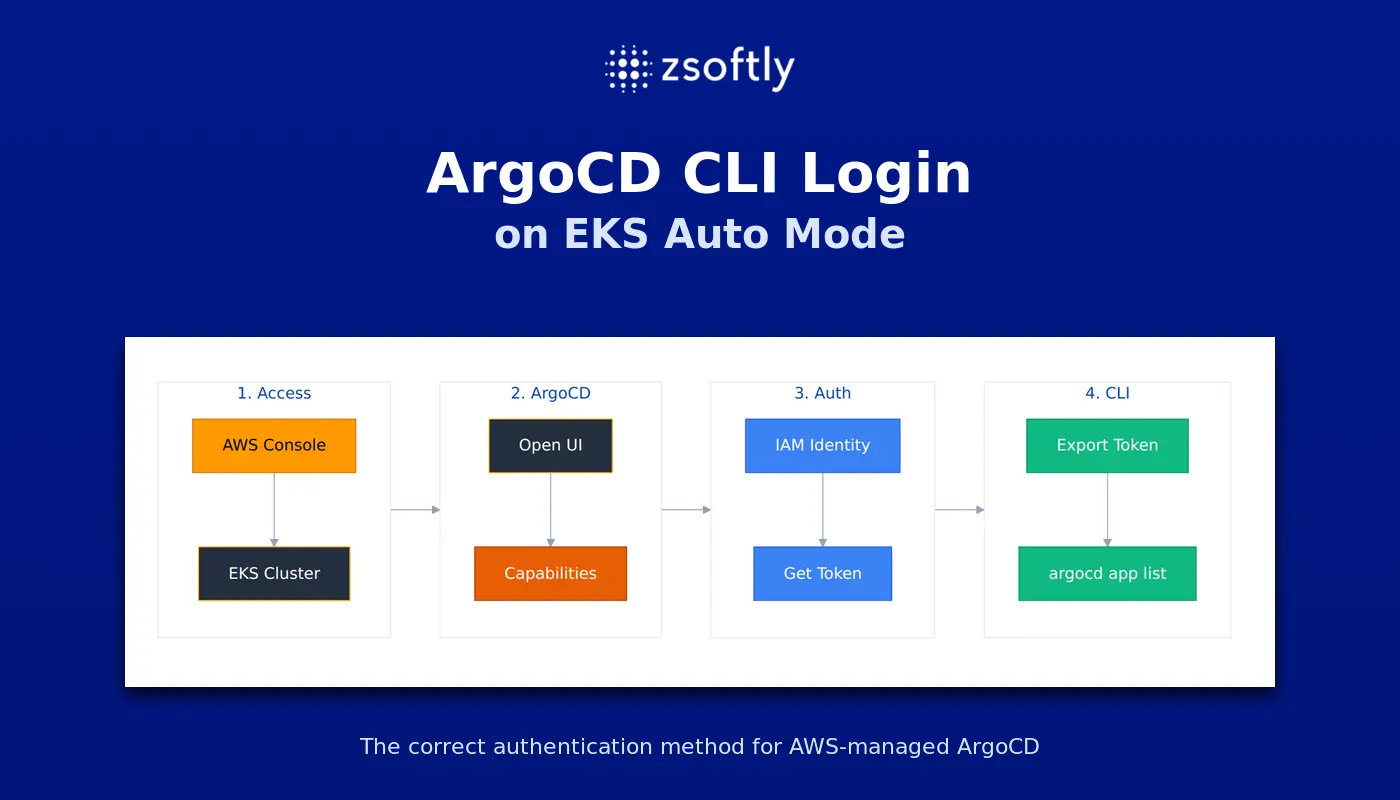
Three steps. Takes five minutes.
Step 1: Get Your ArgoCD Server URL
export REGION=ca-central-1
export CLUSTER_NAME=your-cluster-name
export CAPABILITY_NAME=your-cluster-name-argocd

export ARGOCD_SERVER=$(aws eks describe-capability \
  --region "$REGION" \
  --cluster-name "$CLUSTER_NAME" \
  --capability-name "$CAPABILITY_NAME" \
  --query 'capability.configuration.argoCd.serverUrl' \
  --output text | sed 's|^https://||')
Step 2: Generate a Token from the UI
- Open AWS Console
- Go to EKS, then your Cluster, then Capabilities, then ArgoCD
- Click Open UI
- Sign in with AWS IAM Identity Center
- Navigate to Settings, then Accounts, then your account
- Click Generate New Token
- Copy the token
Step 3: Set Environment Variables
export ARGOCD_AUTH_TOKEN="your-token-here"
export ARGOCD_OPTS="--grpc-web"
Verify It Works
argocd app list
You should see your applications listed.
Quick Reference
| What Works | What Fails |
|---|---|
| Token + env vars + grpc-web | argocd login |
| UI login via IAM Identity Center | Password authentication |
| Account or project tokens | Core mode |
| ARGOCD_SERVER env var | Port-forwarding |
Common Mistakes
Mistake 1: Forgetting VPN (if private access is enabled)
If you configured private endpoint access, the ArgoCD endpoint resolves to private IPs (10.x.x.x). You need VPN access to reach it.
Test with:
dig your-argocd-endpoint.eks-capabilities.ca-central-1.amazonaws.com
If you see a 10.x.x.x address, you need VPN. If you see a public IP, you are good.
Mistake 2: Missing grpc-web flag
The managed endpoint requires gRPC-web. Add this to your environment:
export ARGOCD_OPTS="--grpc-web"
Mistake 3: Trying admin credentials
There is no admin user. AWS IAM Identity Center handles all authentication.
Why This Design?
AWS made these choices for good reasons:
- Security: No passwords to leak. Tokens rotate without cluster changes.
- Simplicity: One authentication path. IAM Identity Center integration out of the box.
- Separation: ArgoCD runs on the control plane. Your cluster stays clean.
The tradeoff is that existing ArgoCD knowledge does not transfer directly. You need to learn the AWS way.
Running into other EKS Auto Mode issues? As an AWS Partner, ZSoftly provides AWS DevOps solutions and AWS managed services for Canadian companies. Talk to us
Sources
- Working with ArgoCD on EKS - AWS Documentation
- ArgoCD EKS Capability Considerations - AWS Documentation
- Create ArgoCD CLI Authentication - AWS Documentation